Where your photos actually live in the cloud
The cloud is real buildings full of drives. See how your photos are stored as objects, copied to several places and served from somewhere nearby.
Key takeaways
Cloud photos live on real drives inside guarded data centers.
Each photo is stored as an object with a unique ID and metadata.
Copies spread across machines and sites survive hardware failures.
CDNs cache files near you, but sync is not the same as backup.
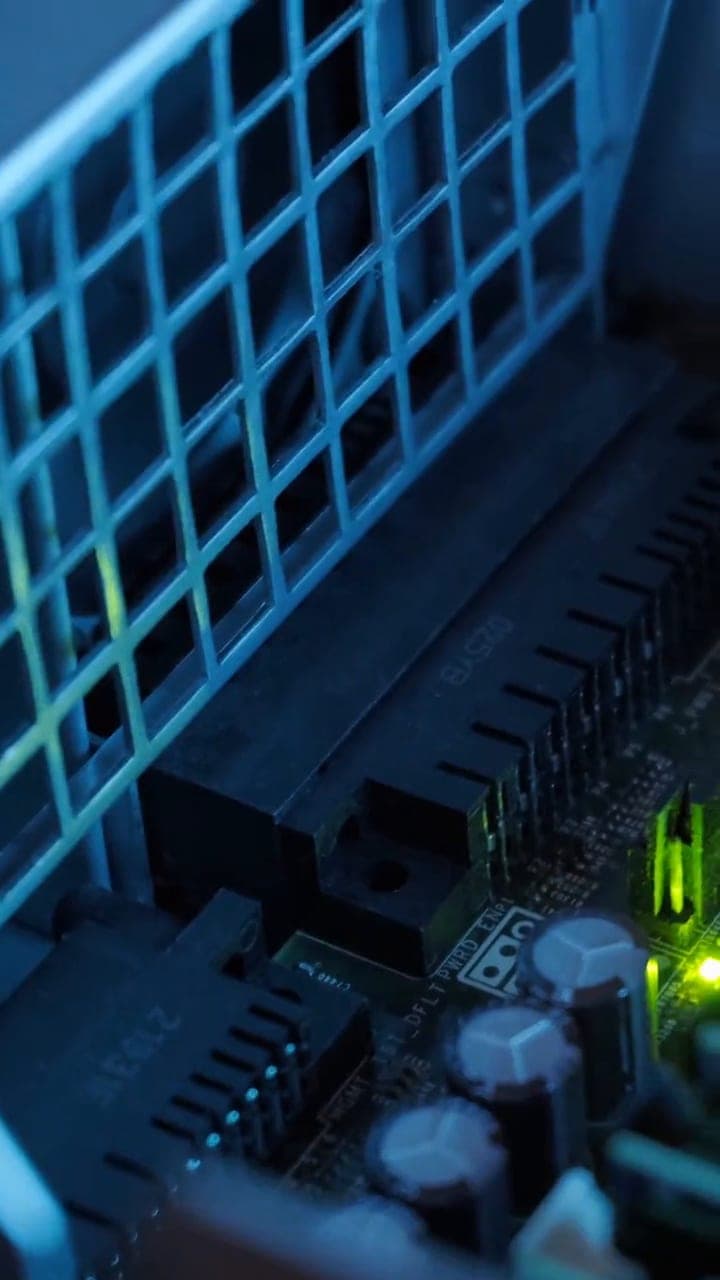
“The cloud” sounds weightless, but your photos live on real hard drives and SSDs inside data centers: large, guarded buildings full of servers, power and cooling. What makes cloud storage special is not where one copy sits. It is how many copies exist, how they are protected and how quickly the right one reaches you.
Step 1: Each photo becomes an object
When your phone backs up a photo, it sends the file over an encrypted connection to the provider. There, it goes into object storage. Instead of living in a folder on one disk, each photo becomes an object: the file's bytes, a unique ID and metadata such as when it was taken, its size and its format. A separate database records which objects belong to your account and which albums they are in.
Object storage is designed to hold billions of objects and to grow simply by adding more machines, which is why a provider can store a lifetime of photos for millions of people.
Step 2: Copies go to more than one place
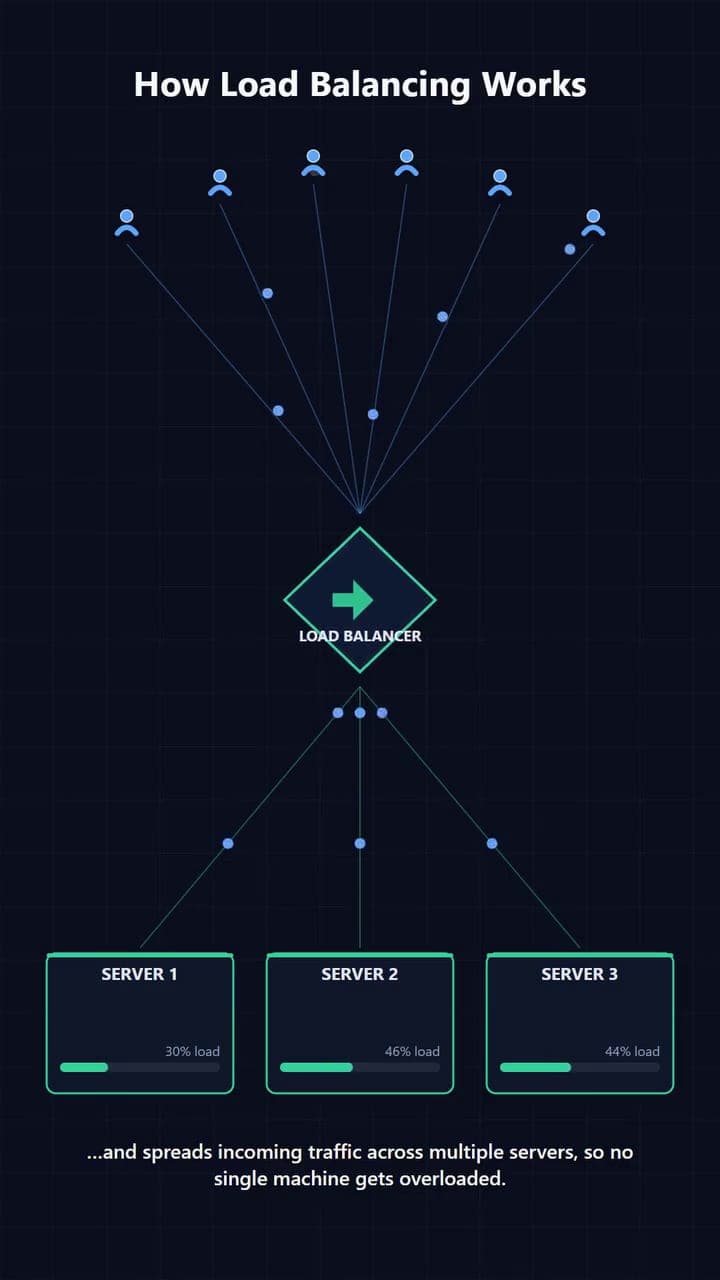
In a large data center, some drive is failing almost every day, so providers never rely on a single copy. They either keep several full replicas or use erasure coding, which splits data into fragments plus extra parity fragments, so the original can be rebuilt even if some pieces are lost.
- Copies or fragments are spread across different drives and servers.
- They are placed in different racks, so one power or network fault cannot take them all out.
- Many services also replicate across separate data centers, so your photo survives even if a whole building goes offline.
Providers also typically encrypt stored data, so a single drive pulled from a server reveals nothing useful on its own.
Step 3: Background jobs prepare extras
After an upload, background jobs usually generate smaller versions of the photo: thumbnails for the grid and mid-size previews for quick viewing. Many services also read the photo's metadata and run image analysis so you can search for “beach” or “dog”. The original stays untouched. The extra versions simply make browsing faster.
Step 4: A CDN brings it close to you
When you open your library, the app loads thumbnails first, then larger versions as you tap. Frequently viewed files are often served through a content delivery network (CDN), a network of servers in many cities that cache copies close to users. Your request goes to a nearby edge server, so a photo can load quickly even when its main copy is stored far away. Access checks make sure only you, and the people you share with, can fetch your private photos.
Why it matters
Knowing this helps you make better choices. Replication protects you from a broken phone or a failed disk, but sync copies deletions too, so deleting a photo on one device usually removes it everywhere once the trash is emptied or its grace period ends. Sync is not the same as backup. For photos you cannot replace, keep a second copy with another service or on a drive you own.